---
title: "Configuring SAML SSO with Clever"
slug: "configuring-saml-sso-with-clever"
updated: 2024-06-06T19:29:09Z
published: 2024-06-06T19:29:09Z
canonical: "help.rapididentity.com/configuring-saml-sso-with-clever"
---
> ## Documentation Index
> Fetch the complete documentation index at: https://help.rapididentity.com/llms.txt
> Use this file to discover all available pages before exploring further.
# Configuring SAML SSO with Clever
## SAML SSO with Clever
SAML for Clever is fairly straightforward from the Identity Automation Identity Provider.
Clever has posted an article outlining their requirements: [https://support.clever.com/hc/s/articles/218050687?language=en_US](https://support.clever.com/hc/s/articles/218050687?language=en_US)
As usual, there's a metadata/certificate exchange needed so that both ends have the proper encryption/decryption available. Please remove the validUntil entry if present.
Note
Clever requires a Single-Logout URL to be provided in our metadata and metadata supplied via live URL. Since Identity Automation does not support either of these, they added the logout URL entry to our metadata anyway, and hosted the metadata on a separate site. Additionally, since they expect metadata to be exchanged via Live URL, their metadata includes an XML entry validUntil which, as mentioned above, must be manually removed from the metadata prior to import into RapidIdentity Federation. Clever also doesn't allow any whitespace or newline characters in or around the certificate in our metadata file upload.
Clever may accept a static copy of the metadata. If they will accept this, a pair of logout lines can be manually added to the metadata before sending it to them. Those lines would look like this:
```
```
And
```
```
The actual location can be worked out with Clever.
Clever Metadata URL: [https://clever.com/oauth/saml/metadata.xml](https://clever.com/oauth/saml/metadata.xml)
#### Launch the Identity Provider Configuration Workspace
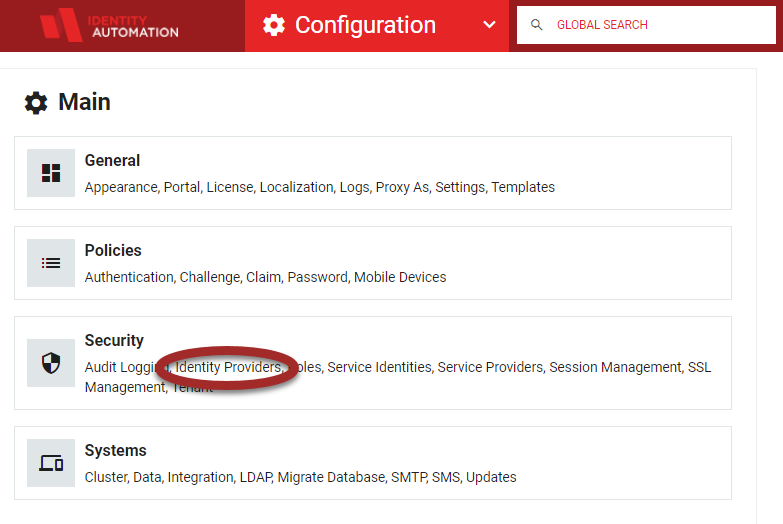
1. From the RapidIdentity Configuration Module, select **Identity Providers** from the Security menu.
---
1. **Create a SAML 2.0 Federation Partner for Clever** a. In the RapidIdentity Configuration module, click **Federation Partners** from the **Identity Providers** section. 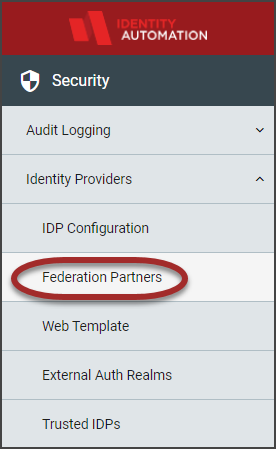
b. Click the **Add Federation Partner** drop-down button and select **SAML 2.0**. 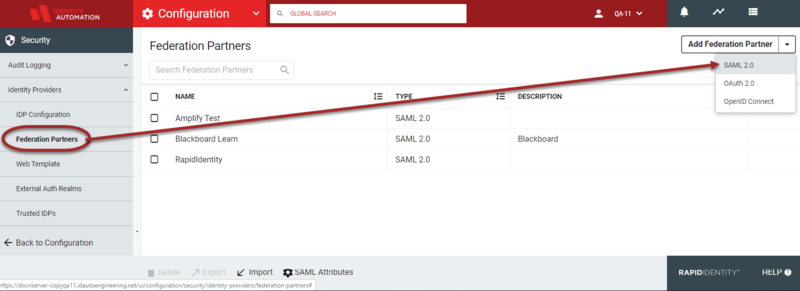
2. The **Federation Partners>Community-SAML Relying Parties** workspace will launch.
3. Click **Create SAML Relying Party+**. Enter the following information in the **Federation Partners > Create SAML Relying Party** window.
1. The tables and respective screens below depict the values that are to be entered for each section, "General," and "SSO Settings," for the Clever Relying Party registration in the **Register SAML Relying Party** window.
2. Paste copy of Clever Metadata in field named "Metadata". 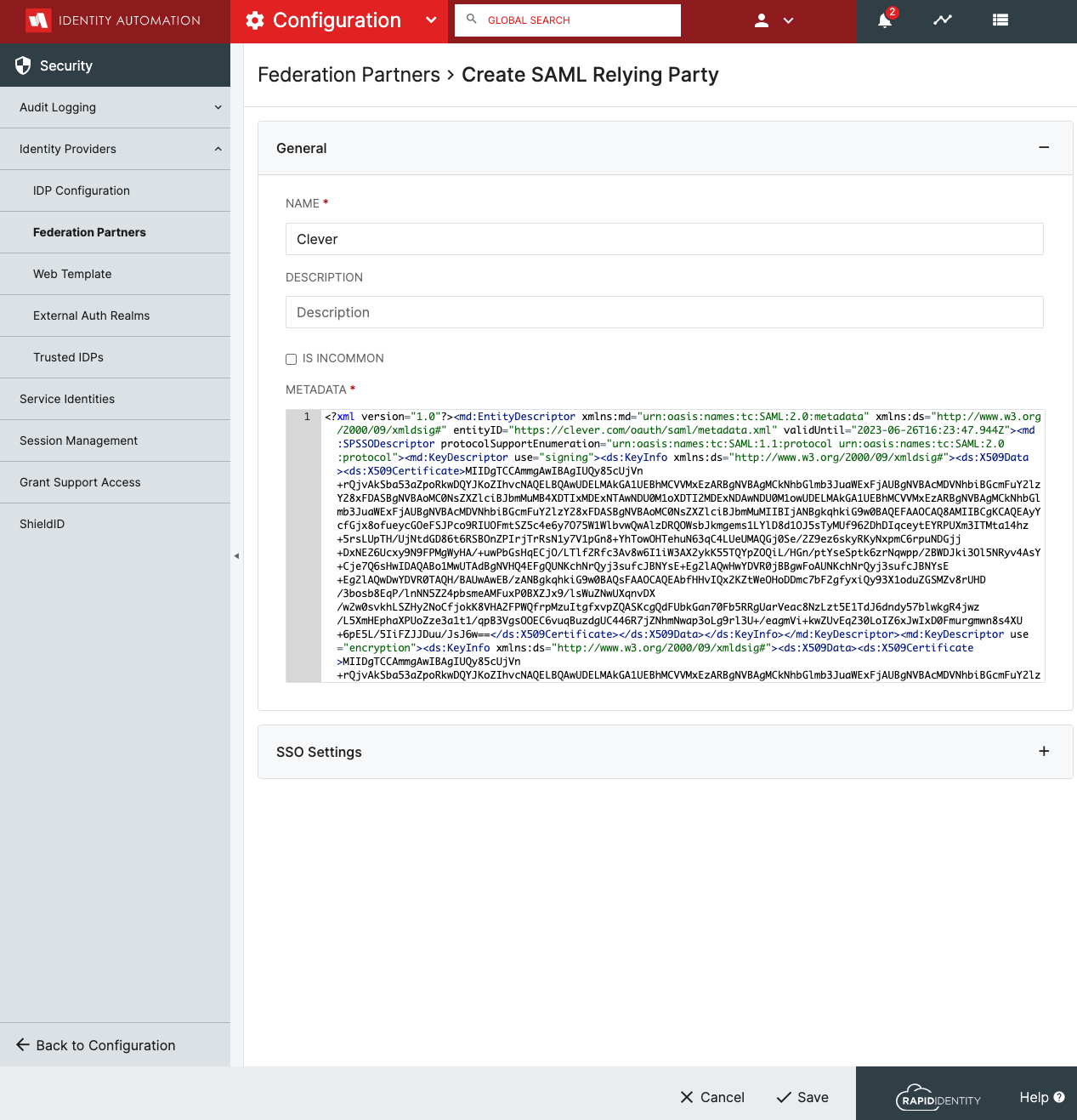
3. Set **SSO Settings** to Match the screen shot below. 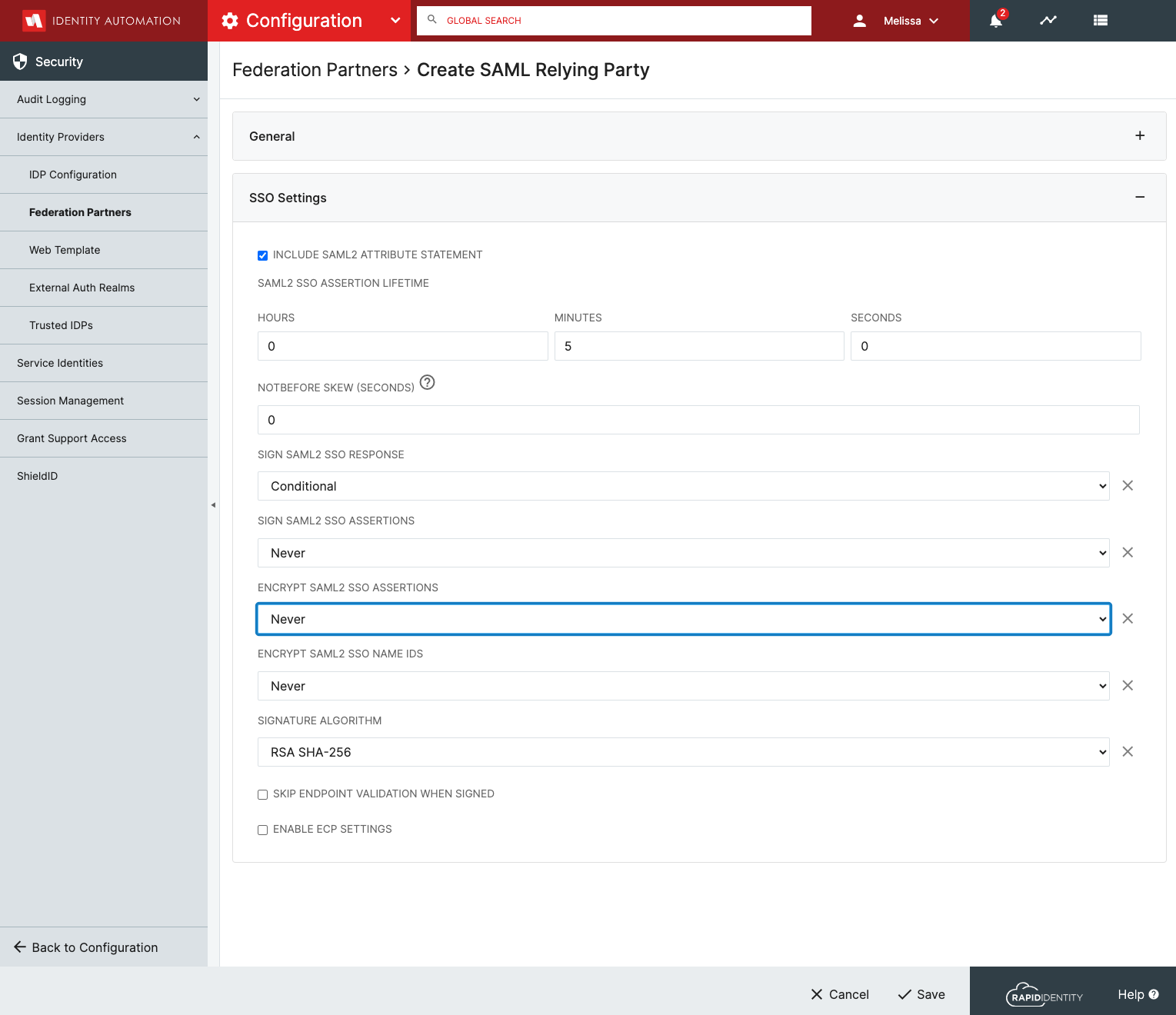
4. Click Save
5. **Define the LDAP Attributes**: 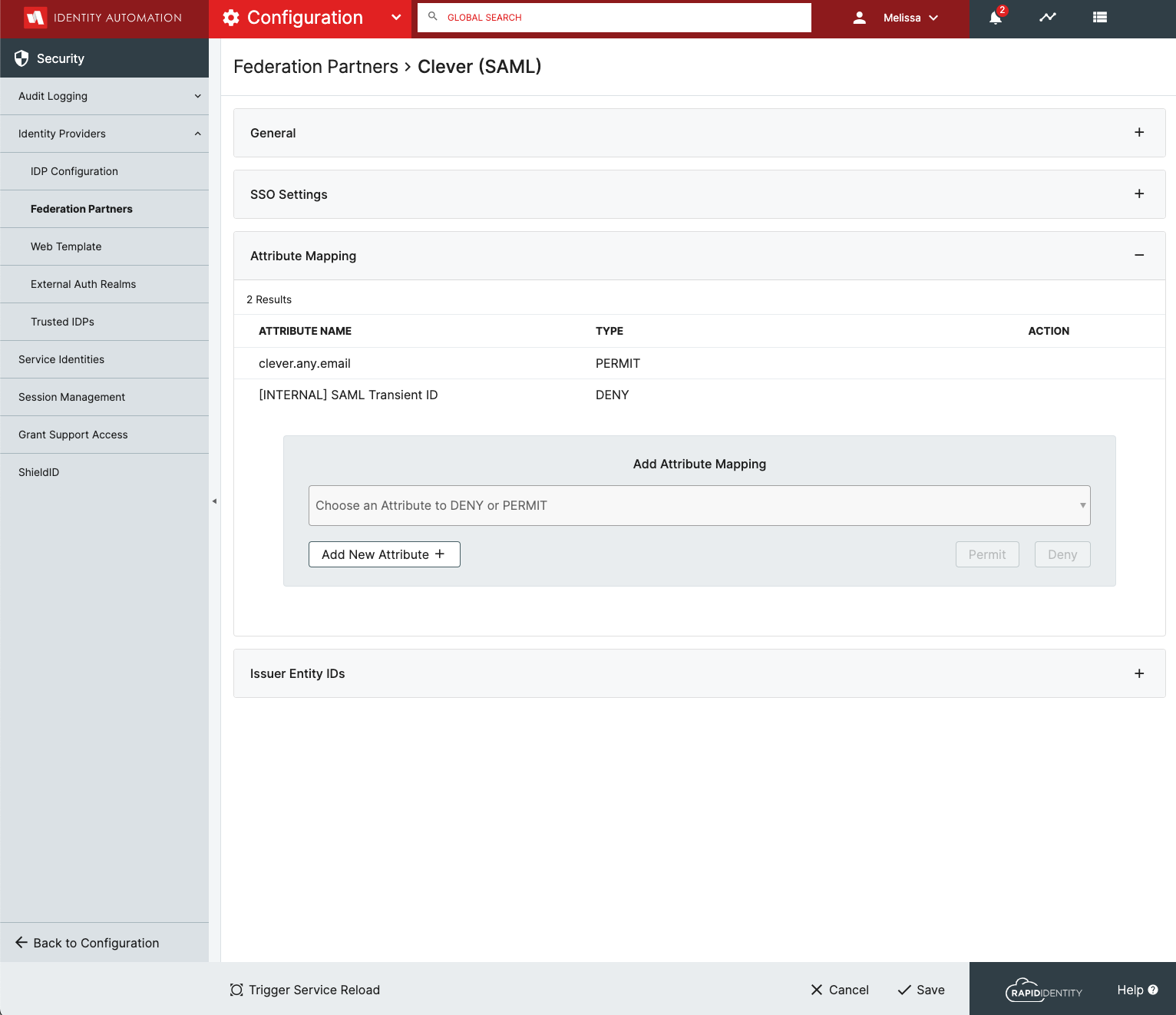
**Note:** When creating the **LDAP attributes in Federation Partners**, make sure to match the case, *upper/lower*.
**Required Attributes**
| LDAP Attribute | SAML Name | Friendly Name | Name Format | Name Format Value |
| --- | --- | --- | --- | --- |
| mail | clever.any.email | clever.any.email | URI Reference | urn:oasis:names:tc:SAML:2.0:attrname-format:uri |
**Attribute Mappings**
| Name | Permit/Deny |
| --- | --- |
| clever.any.email | Permit |
| [Internal] SAML Transient ID | Deny |